

The “Job Aborted Failure in UIO Create Address from IP Address” error can prevent your printer from completing print jobs. It may appear when you try to print a document from a Windows computer to a network-connected printer. The problem can be related to printer drivers, IP address settings, or network configuration.
You can try several troubleshooting steps to resolve this issue. Start with simple fixes, such as restarting your printer, and move on to driver and port settings if the error continues.
What Does Job Aborted Failure in UIO Create Address from IP Address Mean?
The “Job Aborted Failure in UIO Create Address from IP Address” error indicates that a print job has failed during processing. The UIO Create Address from IP Address message appears to relate to the printer driver's attempt to create a network address from an IP address.
In simple terms, the printer driver may be having trouble communicating with the printer through its network connection. However, the exact cause can vary depending on the printer model, driver, and Windows configuration.
The error is particularly relevant when troubleshooting network-connected printers. It does not necessarily mean that the printer itself is damaged. A problem with the software or connection settings may be enough to interrupt printing.
What Causes This Printer Error?
Several issues can cause a printer to abort a print job. The following are possible causes to consider when troubleshooting the error.
Incorrect or Changed Printer IP Address
Network printers use IP addresses to communicate with computers. If the printer's IP address changes but Windows continues using the old address, print jobs may fail.
This can happen when a router assigns a new address to the printer. Incorrect network port settings can also prevent the computer from reaching the printer.
Corrupted or Incompatible Printer Drivers
Printer drivers help Windows communicate with the connected printer. An outdated, corrupted, or incompatible driver may cause printing errors.
This problem can occur after a driver update or a change to the Windows configuration. Some HP printers using a Universal Print Driver may also experience driver-related printing issues.
Incorrect Printer Port Configuration
Windows uses printer ports to direct print jobs to the correct device. If the selected port points to an incorrect IP address or uses unsuitable settings, the printer may not receive the job properly.
This is worth checking if the printer is connected through a local network rather than directly through USB.
Network Printer Sharing Problems
Some printers connect to a network through another computer or a print server. If that computer loses its connection, changes its sharing settings, or encounters a printing problem, other devices may be unable to print.
Incorrect permissions or shared printer configurations can also interfere with printing.
Windows Update or Printing Configuration Issues
Windows updates can sometimes affect printer drivers, device settings, or network printing configurations. If the error appeared shortly after an update, a compatibility issue may be involved.
However, the timing alone does not prove that the update caused the problem. Other printer or network settings may also need attention.
How to Fix Job Aborted Failure in UIO Create Address from IP Address
Try the following fixes in order. Test your printer after each major change so you can identify which step resolves the issue.
1. Restart Your Printer and Computer
Restarting your devices can clear temporary communication problems and refresh the printing process.
- Turn off your printer and disconnect its power cable.
- Shut down your computer.
- Wait about 30 seconds.
- Reconnect the printer's power cable and turn it on.
- Start your computer and try printing again.
If your printer connects through Wi-Fi or Ethernet, make sure it has reconnected to the network before sending another print job.
2. Remove and Re-add the Printer
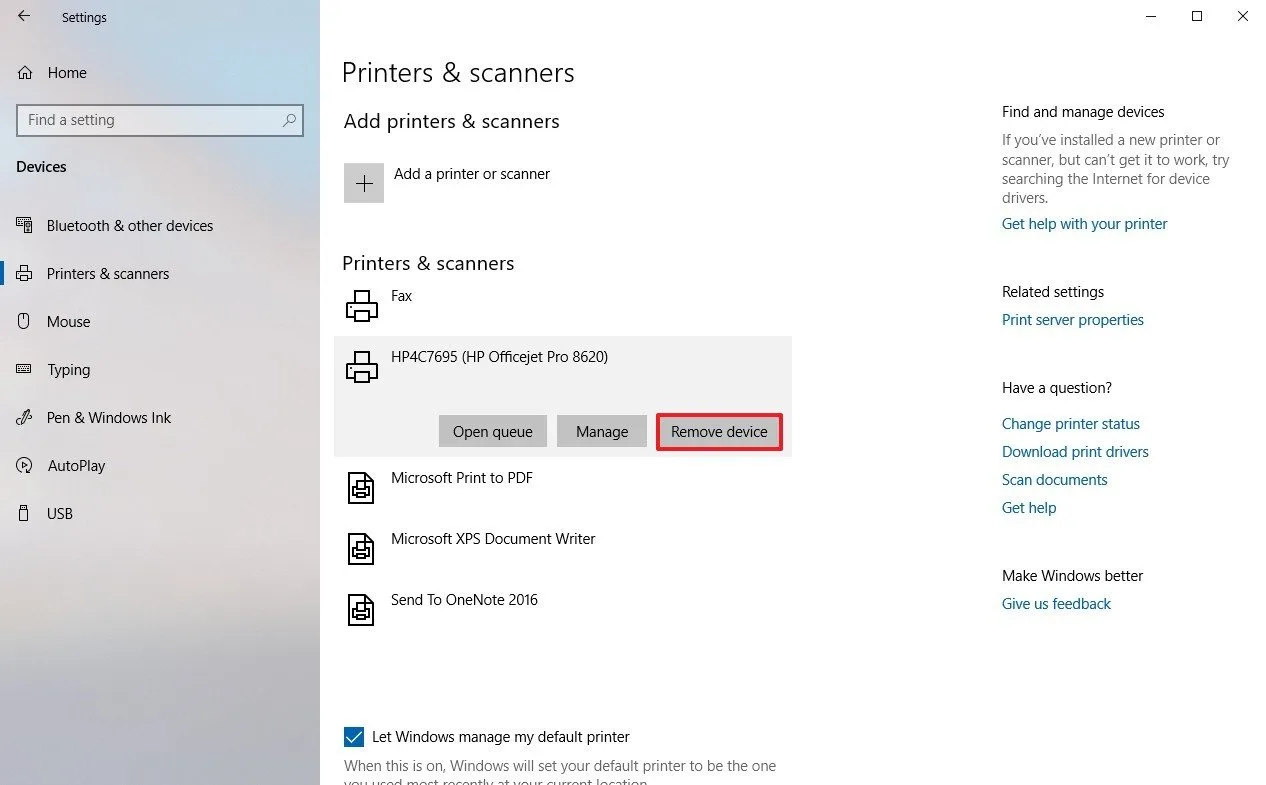
Removing and adding the printer again can refresh its Windows configuration. This may help if the existing printer entry has incorrect settings.
- Open Settings on your Windows computer.
- Open Settings.
- Select Bluetooth & devices.
- Click Printers & scanners.
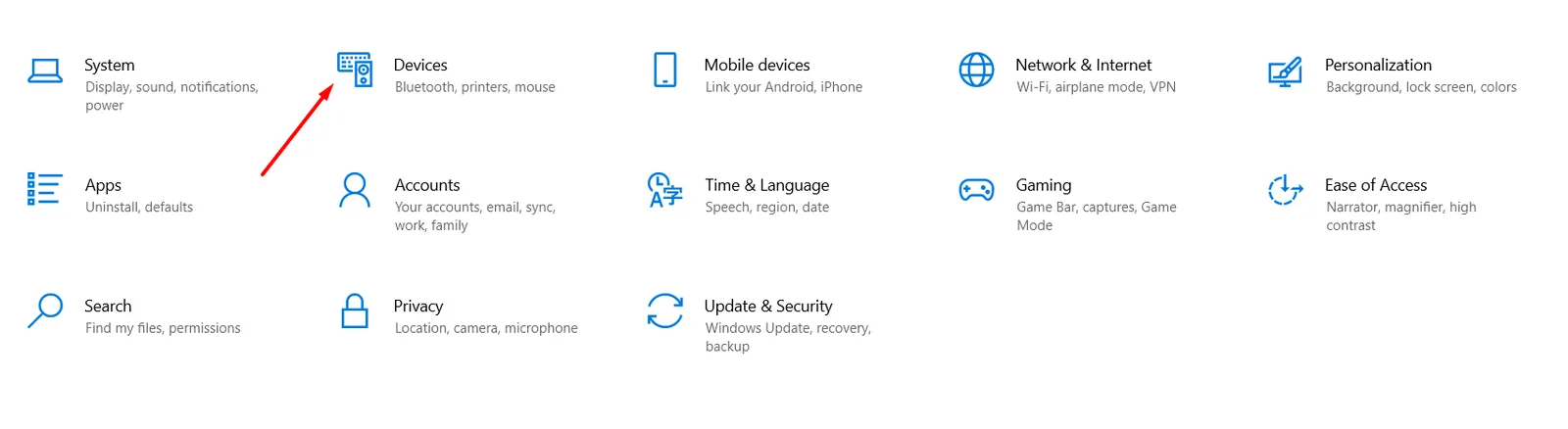
- On Windows 10, open Devices.
- Go to Printers & scanners.
- Select the affected printer.
- Choose Remove and confirm your choice.
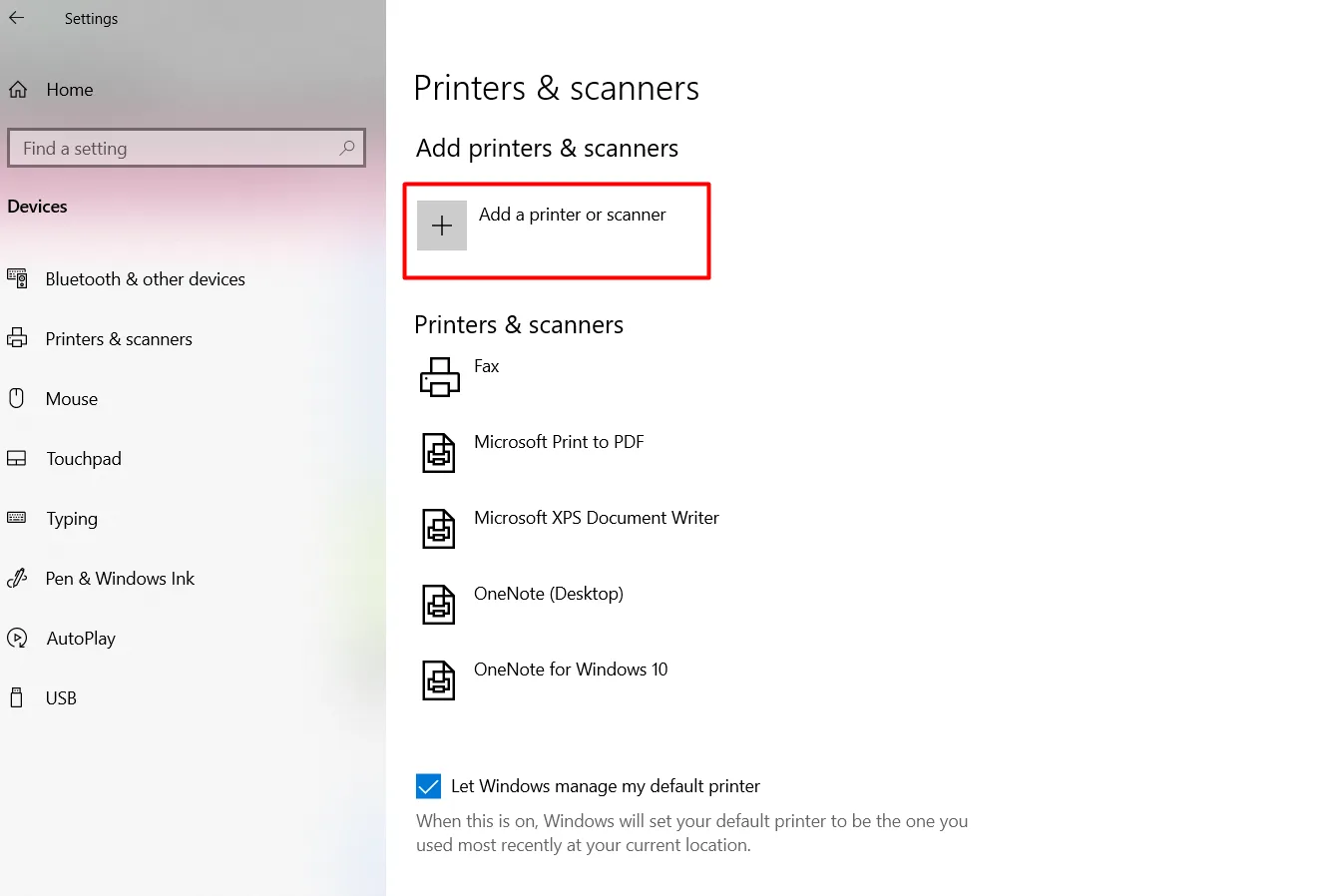
- Return to the printer settings and select Add a printer or scanner.
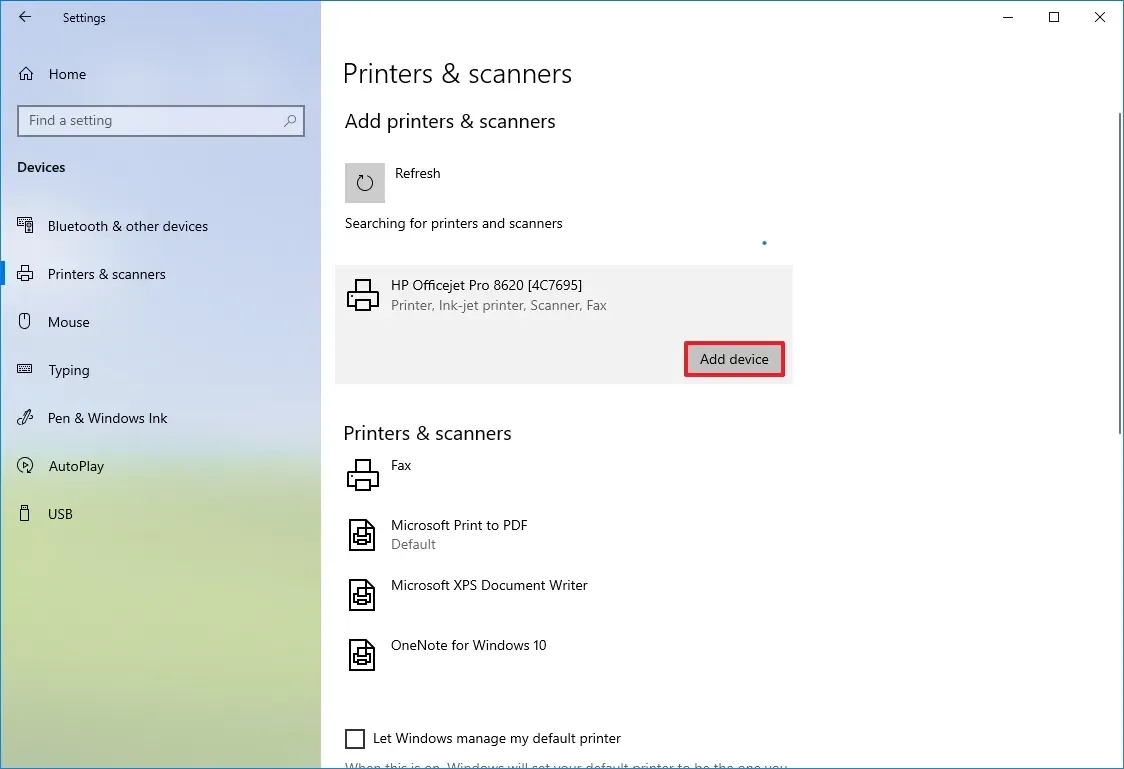
- Click on Add device and follow the instructions to add your printer again.
If Windows does not find the printer automatically, you may need to add it manually using its current network address or the manufacturer's installation software.
Print a test page to check whether the error has disappeared.
3. Check and Correct the Printer's IP Address
If you use a network printer, verify that Windows is using the printer's current IP address.
- Find the printer's IP address through its control panel, network settings, or configuration page.
- Open Settings > Bluetooth & devices > Printers & scanners.
- Select your printer and open its printer properties. You may need to access the classic printer properties window through related settings.
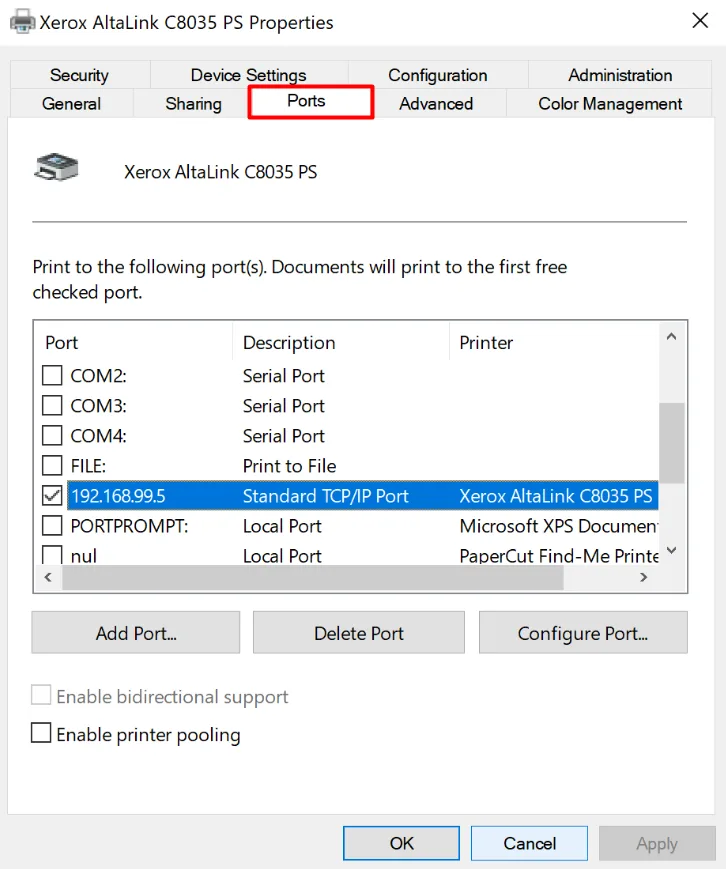
- Open the Ports tab.
- Check the selected port and compare its address with the printer's current IP address.
- If the address is incorrect, configure the printer to use the correct address or create an appropriate port.
The exact steps depend on your printer model and Windows version. If the printer uses a shared connection, check the host computer or print server configuration instead.
4. Reconfigure the Printer Port Settings
Incorrect port settings can prevent Windows from sending print jobs to the right destination. Review the port configuration if the IP address is correct but printing still fails.
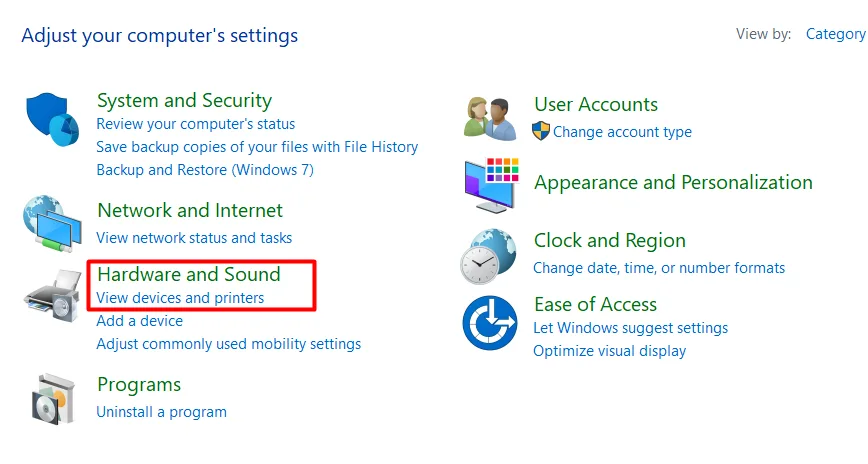
- Open the classic Control Panel.
- Select Hardware and Sound > View devices and printers.
- Right-click your printer and select Printer properties.
- Open the Ports tab.
- Confirm that the correct port is selected.
- If the printer uses a standard TCP/IP port, check its configuration and make sure it points to the correct printer address.
Do not change port settings randomly. The correct configuration depends on whether the printer uses a standard TCP/IP port, a shared printer connection, or another connection method.
Apply any necessary changes and print a test page.
5. Update or Reinstall the Printer Driver
A driver problem may cause the printer to abort jobs during processing. Installing a compatible driver can help resolve this issue.
First, visit the printer manufacturer's official support website and find the driver for your exact printer model and Windows version. Download and install the recommended driver.
If updating the driver does not help, try reinstalling it:
- Remove the printer from Windows settings.
- Open Print server properties from the classic printer settings, if available.
- Check the Drivers tab for the affected printer driver.
- Remove the driver if Windows allows it and it is no longer needed by other printers.
- Install the correct driver from the manufacturer's website.
- Add the printer again and test it.
Be careful when removing shared or system-wide drivers because other printers may use them. If the issue began after a driver update, testing an earlier compatible version may also help.
6. Restart the Print Spooler Service
The Print Spooler service manages print jobs in Windows. If it becomes stuck, jobs may remain in the queue or fail to print.
Follow these steps to restart it:
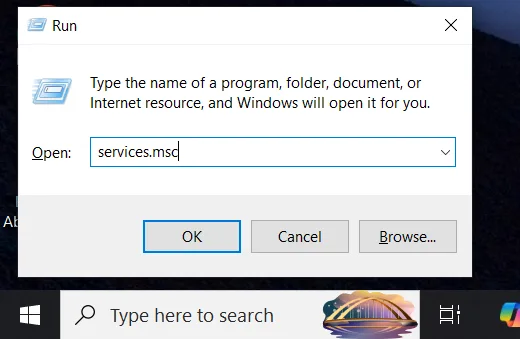
- Press Windows + R to open the Run dialog box.
- Type services.msc and press Enter.
- Find Print Spooler in the services list.
- Right-click it and select Restart.
- Wait for the service to restart.
- Try printing again.
If the Restart option is unavailable, stop and start the service instead. You may need administrator permissions.
If a particular print job remains stuck, open the printer queue and cancel that job before trying again.
7. Fix Network Printer Sharing Issues
If your printer is shared through another computer, check the connection between the printer, host computer, and device sending the print job.
- Make sure the host computer is turned on and connected to the network.
- Confirm that the printer works when printing directly from the host computer.
- Open the printer's sharing settings and verify that sharing is enabled if required.
- Check that the computer sending the print job has permission to use the shared printer.
- Remove and reconnect the shared printer if its existing connection is no longer working.
If the printer is connected directly to the network, check its Wi-Fi or Ethernet connection instead. You can also restart the router if other network devices are experiencing connection problems.
8. Check for Recent Windows Updates
If the error started after a Windows update, check whether a driver or printing compatibility issue may be responsible.
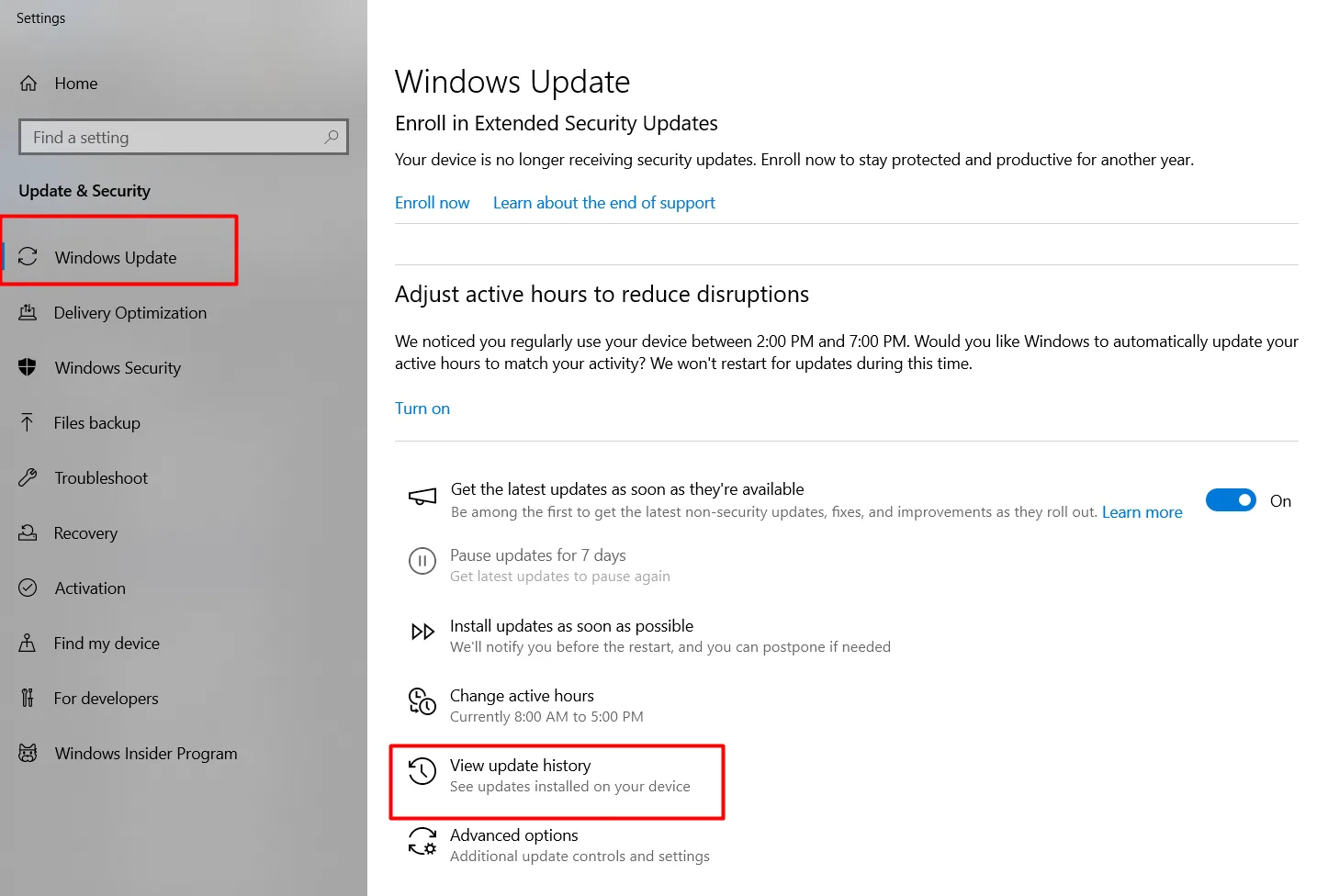
- Open Settings > Windows Update > Update history.
- Review the updates installed around the time the problem began.
- Check the printer manufacturer's support website for driver updates or known compatibility issues.
- Install any applicable driver or Windows updates that address the problem.
If you have strong evidence that a recent update caused the error, you can consider uninstalling that update through Windows Update settings. However, do this only after checking for a safer fix, as removing security updates can expose your computer to risks.
What to Do If the Printer Error Persists?
If none of these steps works, narrow down the problem before making further changes.
- Try printing from another computer: This helps determine whether the issue is limited to one computer or affects the printer more broadly.
- Test a different document: If only one document fails, the file or application may be causing the problem.
- Check the printer's connection: Confirm that the printer remains connected to the network and that its IP address has not changed.
- Review the printer's error messages: Other messages in the print queue or printer software may provide additional clues.
- Contact the manufacturer's support team: Provide your printer model, Windows version, driver version, and the complete error message.
Avoid reinstalling Windows as an initial troubleshooting step. Printer port settings, drivers, and network configuration are more appropriate places to start.
Final Words
The “Job Aborted Failure in UIO Create Address from IP Address” error can interrupt printing, but you can often resolve it by correcting printer settings or fixing driver and network issues. Start with simple solutions and test your printer after each step.
If the problem continues, check the printer's IP address, port configuration, and sharing settings. These steps can help restore printing without requiring you to reinstall Windows.
Related guide: Why Does My Car Start Shaking When Parked?
Frequently Asked Questions
1. What does UIO mean in a printer error?
In this message, UIO appears to refer to an internal printer driver component involved in creating a network address. The exact expansion of the abbreviation is not clearly established across printer models.
2. Why does my HP printer abort print jobs?
An HP printer may abort print jobs because of driver problems, incorrect port settings, network interruptions, or a stuck print queue. The exact cause depends on the printer and its connection to the computer.
3. Can an incorrect IP address cause this printer error?
Yes. If Windows sends print jobs to an outdated or incorrect printer IP address, the computer may fail to communicate with the printer. Checking the current address and port configuration can help resolve the issue.
4. Will reinstalling the printer driver fix the problem?
Reinstalling the driver may help if the existing driver is corrupted or incompatible. However, it will not necessarily fix problems caused by incorrect IP addresses, network connections, or printer sharing settings.
5. Can I fix this error without reinstalling Windows?
Yes. You can try restarting the Print Spooler, correcting printer port settings, reinstalling the printer driver, or reconnecting the printer. Reinstalling Windows is rarely a suitable first step for an isolated printer error.